How to Run WinVMJ Composer
It is now time to compile and run the product.
Prerequisites
1. Generate modules from UML-DOP before proceeding to the next steps.
2. Move the generated modules from your UML-DOP directory to the modules directory in the project where you want to generate them. You can use this example if you want.
Generating a Product
The product generation starts by creating a new configuration:
- The configuration is defined in the directory configs.
- Right click on the project, then select NEW -> OTHER -> FeatureIDE -> Configuration File.
- Define the configuration file's name to represent the product's name.
- Select the required features, then right click on the configuration file and choose FeatureIDE -> Set As Current Configuration.
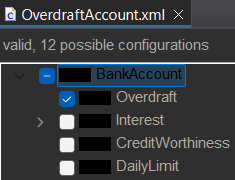

Generated modules are available in the src directory. If the generated modules do not appear, ensure you have generated the modules from the UML and placed them in the modules directory.
Compiling a Product
Follow these steps to compile the generated product:
- Right click on the src directory.
- Select FeatureIDE > WinVMJ > Compile.
- Check the WinVMJ Console to monitor the compilation process.

The compiled application will be placed in the src-gen directory.
Running a Product
Follow these steps to run the compiled product:
- On the top toolbar, click on Run > External Tools > External Tool Configuration.
- Click on Program > New Configuration.
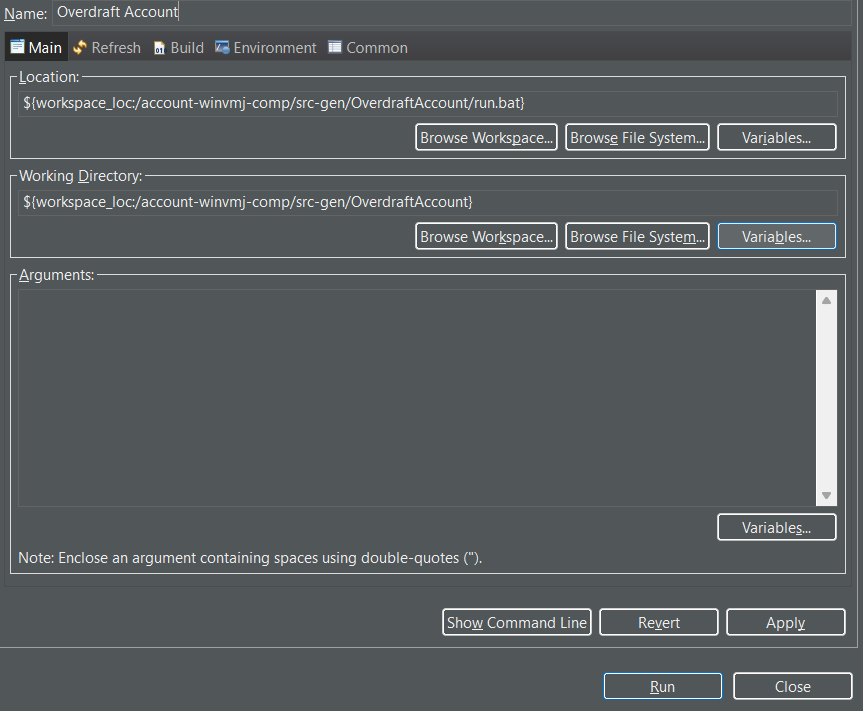
- Set the script location to src-gen/[Product Name]/run.[bat (Windows) / sh (Linux / Mac)].
- Set the working directory to src-gen/[Product Name]/.
- In the Environment menu, add the following environment variables:

- AMANAH_HOST_BE -> Backend host address (e.g., "localhost")
- AMANAH_PORT_BE -> Backend port number (e.g., "7776")
- AMANAH_DB_USER -> PostgreSQL username (e.g., "postgres")
- AMANAH_DB_PASSWORD -> PostgreSQL password (e.g., "postgres")
- AMANAH_DB_URL -> Database URL (e.g., "jdbc:postgresql://localhost:5432/bankaccount_product_overdraftaccount")
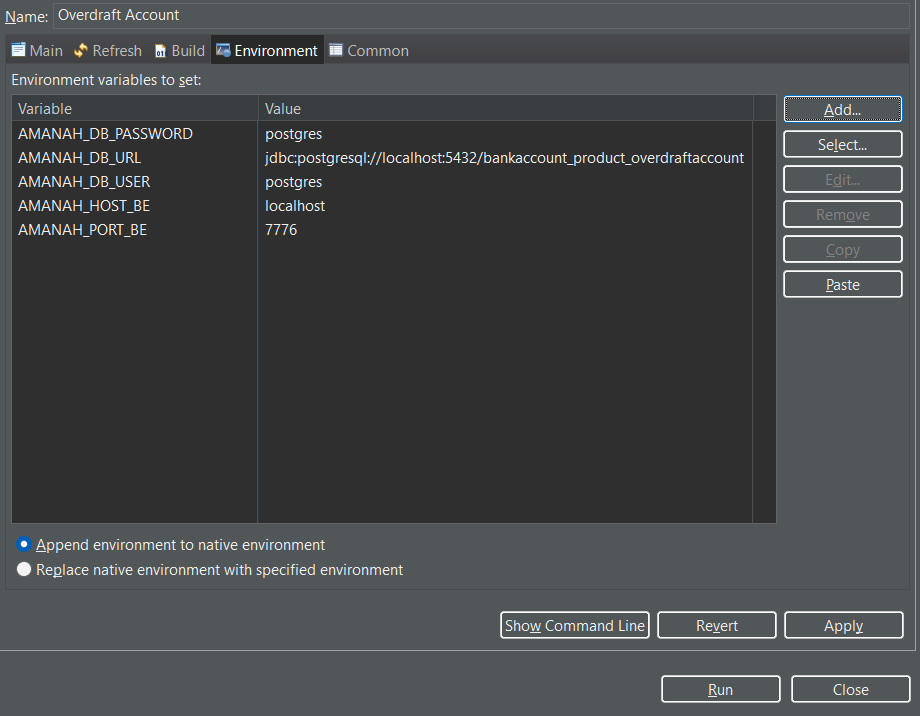
- Click Apply to save the environment variables.
- Click Run.